
Summary
When downloading an export, it may be blocked by the web browser's security settings, preventing successful download. This can often be because pop-ups are blocked for the Opus platform.
The guidance is specific for Google Chrome however if pop-ups are blocked in a different browser, a quick internet serach should provide relevant instructions.
We've set out how to remove the pop-up block to enable successful download below.
Removing Pop-up Block
You can clear the pop-ups block from Google Chrome in one of two ways:
From the Notification
- Press Pop-up Blocked Notification - At the end of the URL / Address bar, press the Pop-up blocked notification (it may appear as just an icon).

- Change Settings - From the settings window that appears, change to 'always allow pop-ups from...' and press Done.
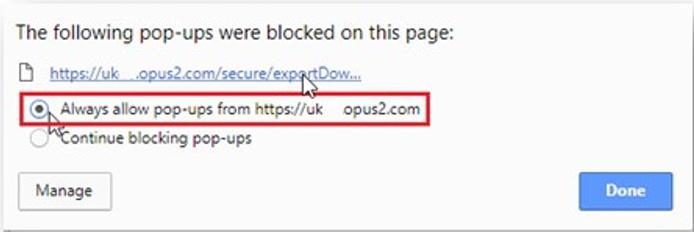
- Re-download Export - Refresh the browser and re-run the export of if a larger file, re-download the export from the Export Manager page.
More information on the Export Manager page can be found here.
Via Settings
- Navigate to Settings Page - Enter chrome://settings/content/popupsinto Chrome's URL / search bar to navigate to the Chrome settings or manually navigate:
- Click the three dots in the top-right corner and select Settings.
- Click Privacy and security on the left menu.
- Click Site settings under that section.
- Scroll down and click Pop-ups and redirects.
- Update Settings - Depends on how the settings appear:
- Remove from 'Not allowed to send pop-ups or use redirects' list - If the site appears in this list, press the three dots next to the URL and click Remove.
- Add to 'Allowed to send popups and use redirects' list - If the site doesn't appear in this list, press Add and input the URL, i.e. ukXX.opus2.com (replacing XX with the relevant number for your Opus URL).