
Matter Assist is not generally available yet - if you would like early access as part of our soft launch please contact SO@opus2.com.
Summary
Matter Assist is a chat-based AI feature in the Hearings Solution. You ask questions in natural language and receive answers drawn from the documents and transcripts in your party workspace, each supported by references to the source material behind them. You can build up a conversation, ask follow-up questions, and open the sources to check them for yourself.
Matter Assist differs from Hearing Assist. Hearing Assist works automatically in the background during a Hearing, flagging potential inconsistencies as testimony unfolds. Matter Assist is used on demand: you drive it by asking questions, in much the same way as other chat based AI tools, but grounded in your own case materials.
By default, Matter Assist looks across all the documents and transcripts in your party workspace, and you can narrow a query to selected documents when you want to.
Matter Assist is there to support your analysis, not to replace it. Responses are AI-generated and should be checked against the sources provided before you rely on them.
Matter Assist will need to be enabled in your workspace and for your account before you can use it. Please contact SO@opus2.com for more information.
Guidance
Asking a query
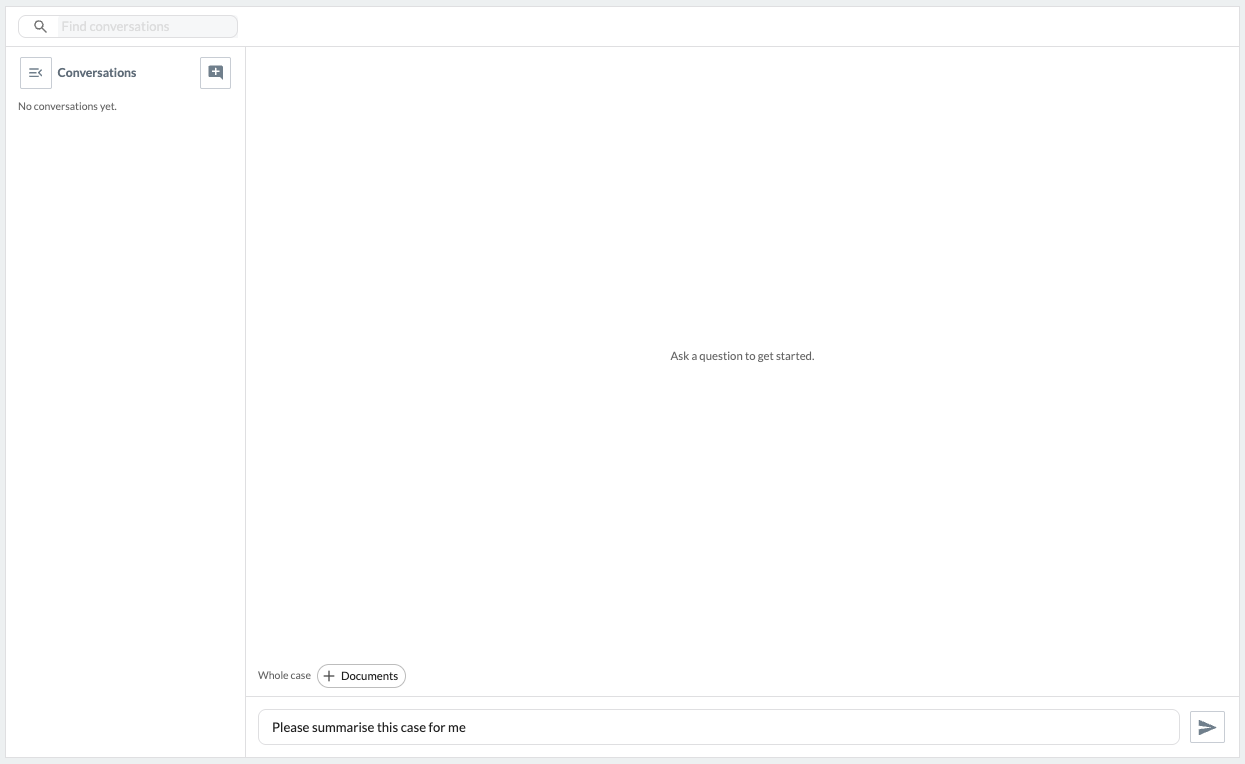
Type your question into the box at the bottom of the screen and send it. Matter Assist reads across the documents and transcripts in your workspace and returns an answer, with references to the sources it drew on.
You can continue the conversation, asking follow-up questions in the same thread. Each response builds on the exchange, so you can refine or expand on what you have asked, in the same way as a chat conversation.
Matter Assist is not a search engine. Search is designed to help you find something specific, such as a document, name, phrase or exact wording, by matching your search terms to the text in your documents. Matter Assist works differently: it assesses the meaning and context of your question, uses the key concepts in it to identify the most relevant passages across your documents, and then draws on those passages to formulate an answer with links back to the sources.
Choosing what the query runs against
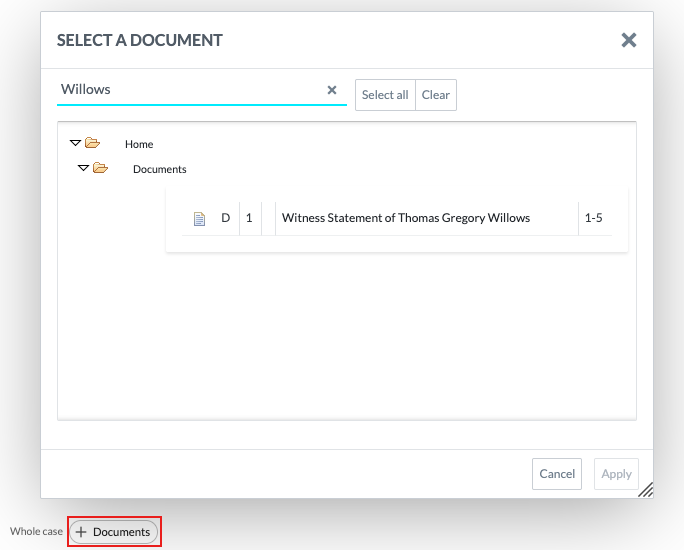
By default, Matter Assist runs your query across the whole case: all documents and transcripts in your party workspace.
If you want to focus a query, you can choose specific documents or transcripts to run it against instead, using the Documents option beneath the query box. This is useful when you already know which materials are relevant and want to keep the answer tightly scoped.
Reviewing the response and its sources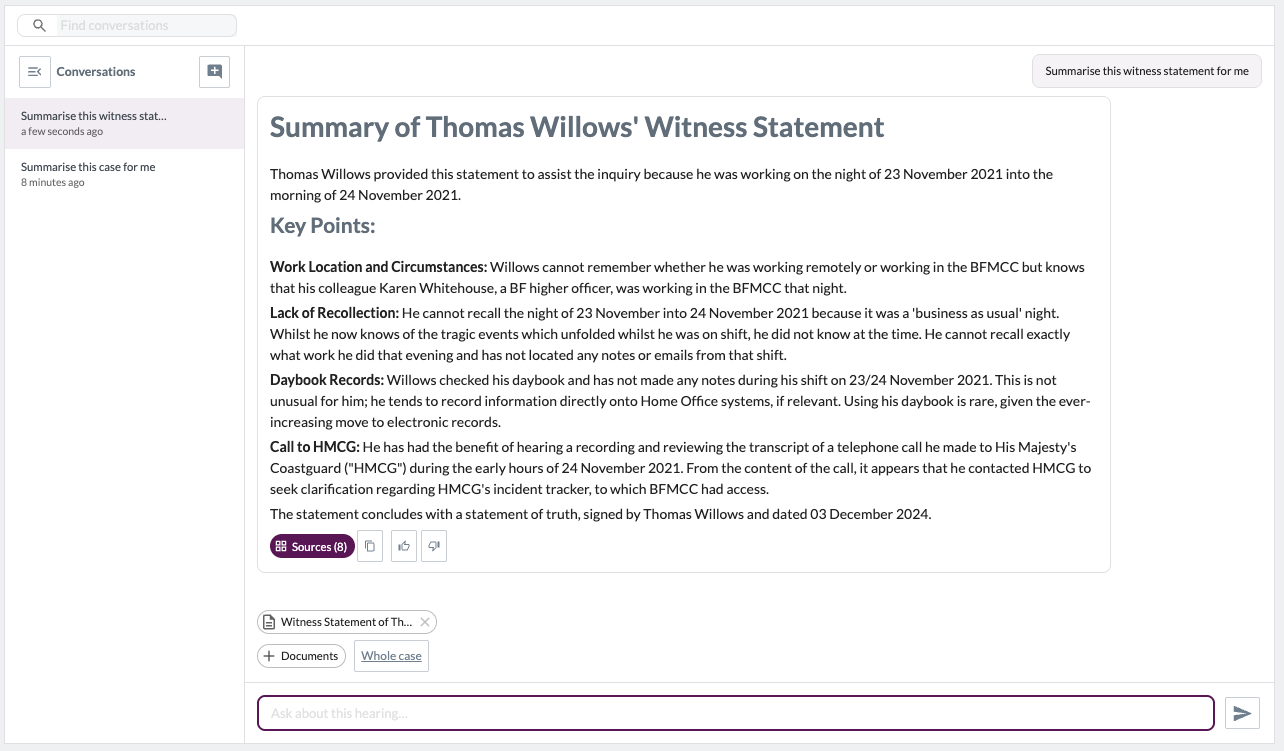
Each response is supported by the sources Matter Assist used to produce it.
Select Sources to open the source panel. Sources are first listed as a table showing the document name and the relevant page.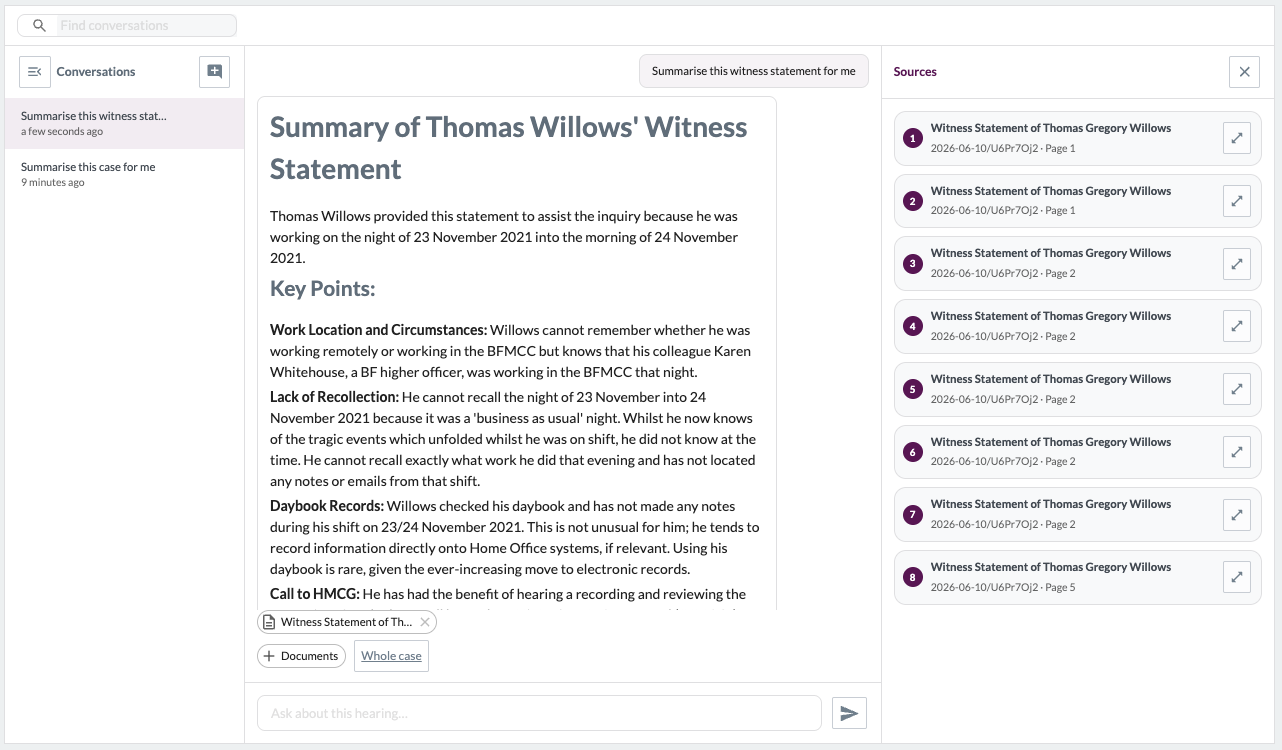
To look at a source more closely:
- Select a source to open it in a preview.
- Within the preview, select the document to open it in full in a new tab.
- Use the back arrow
 to return to the source list.
 - Use the expand icon
 to enlarge the preview.
 - Select the X to close the source panel.
Reviewing the sources lets you confirm a response against the underlying material before you rely on it.
Copying a response
Select the copy icon  beneath a response to copy its text, ready to paste elsewhere.
You can indicate whether a response was helpful using the thumbs up and thumbs down icons beneath it. This feedback helps us improve the quality of Matter Assist over time.
Managing your conversations
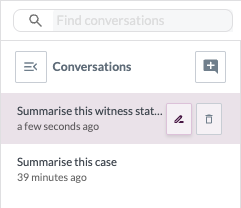
Your conversations are saved down the left-hand side of the screen, so you can return to earlier exchanges. From this panel you can:
- find previous conversations;
- collapse the panel to give yourself more room;
- start a new conversation;
- rename a conversation;
- delete a conversation.
Important notes
- Matter Assist is available on the web version of the Opus 2 only.
- Matter Assist should only be provided to users with full access to documents and transcripts (e.g. users with limited access due to confidentiality rings, or similar, are not permitted to use Matter Assist).
- Matter Assist works from the text in your PDF documents. Where a document's underlying text is poor quality - for example a scanned document with inaccurate OCR - the analysis has less reliable material to work from, which can affect the quality of the insights. Any documents uploaded as native files will not be accounted for.
- Matter Assist draws only on the documents and transcripts in your party workspace. It does not use the AI's general knowledge or any external sources. Inclusion of the Realtime feed to Matter Assist analysis Coming Soon.
- Your AI insights draw on the shared hearing bundle and transcripts, and on any documents your party adds to its private workspace. Adding your own material to the workspace can therefore enrich your Matter Assist responses.
- Responses are AI-generated. They are grounded in your materials, but you should check them against the cited sources before relying on them.
- Your workspace is private to your party. Conversations, queries, and results are not shared with other parties.